← Back to overview

The Full Guide iPhone

Every screen, capture method, shortcut, and setting in Calendar Catcher for iPhone. Using Android? Read that guide instead.

What's new

In the October 7 build

New since the last guide:
  • A new HOME screen. Pick your own big main button. Every capture is visible, with no "More" menu.
  • Snap & Send and Say & Send are the new names for Quick Photo Send and Quick Send.
  • Lists are named checklists on your phone. Recent shows everything you've added or sent.
  • Several photos shared together are read as pages of one document (up to 5 pages, counted as one read).
  • Master Calendar now takes a PDF. It asks about grades, last names and year-round tracks, and it spots a newer version of a calendar you already added and shows only what changed.
  • AM or PM? When a time like "Colonoscopy at 4" could be either, the app asks you instead of guessing.
  • Cleaner screens throughout: one header style, bottom sheets instead of pop-up cards, and short "toast" notices with Undo.

HOME

The capture screen

HOME has a gear on the left that opens Settings. The icon on the right changes: an amber tray opens To Schedule, and its badge counts what's waiting. While you're reviewing events, it's a calendar icon that opens the event in Planner.
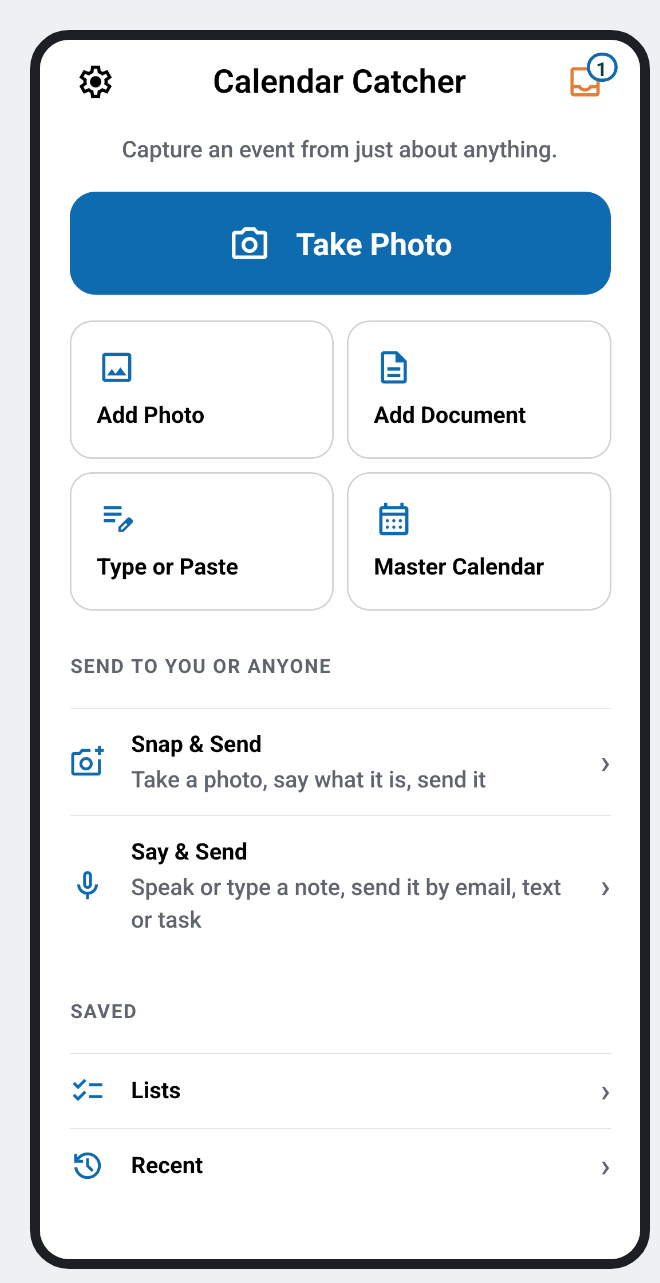
The HOME screen: a big Take Photo button, four capture tiles, Snap & Send and Say & Send
πŸ”΅

The main button

The big blue button at the top is Take Photo unless you change it. To change it, press and hold any capture tile and choose Make it the main button. You can also use Settings → Home screen. Choices: Take Photo, Add Photo, Add Document, or Type or Paste.

πŸ”²

The capture tiles

The other captures sit in a 2×2 grid under the main button: Add Photo, Add Document, Type or Paste, and Master Calendar.

πŸ“¨

Send to you or anyone

Snap & Send and Say & Send, for things that aren't events. More below.

πŸ—ƒοΈ

Saved

Lists (your checklists) and Recent (everything you've added or sent).

Copied something? Press and hold an empty spot on HOME. Type or Paste opens with your clipboard already in the box, ready to check before you tap Turn into events.

Capturing something

Many ways in, one thing out

πŸ“·

Take Photo

Opens the camera so you can capture a note, flyer, sign, or appointment card right now.

πŸ–ΌοΈ

Add Photo

Pick a photo or screenshot you already have.

πŸ“„

Add Document

PDFs, Word documents, and spreadsheets: anything with a table or list of dates. One document can become many events.

⌨️

Type or Paste

Type, paste, or say an event, like "Dentist Tuesday 3pm". If your clipboard has text, a Paste chip appears. Tap Turn into events.

🎨

Master Calendar PRO

A whole school, league, church, or district year in one go. Its own section is below.

πŸ“€

Share into the app NEW: PAGES

Share a photo or text to Calendar Catcher from Photos, Messages, Mail, or any app with a Share button. Share several photos at once and they're read together as pages of one document. That counts as one read, and up to 5 pages are read. If you share more, the app tells you it read the first 5. To read a PDF, use Add Document instead of sharing it. If you don't see Calendar Catcher in the share sheet, scroll the row of apps to the end and tap More.

QR codes: To read a Calendar Catcher QR code on iPhone, point the Camera app at it. Reading one from a photo isn't available on iPhone yet.

Reviewing what it found

Nothing is added until you say so

One event opens straight into Planner. Several open in the Event list first. The icon at the top right switches between the two.

1

The Event list: "Found N events"

Each event is one row with a checkbox, a date tile, the title, and when it is. Untick any you don't want. The Selected and Not selected pills filter the list. Events already in the past start unticked and are tucked away at the bottom ("5 past events hidden Β· Show"). Warnings show on the row in words: an overlap, a past date, "AM or PM? Check the time", or "Who is …?".

2

The β‹― tools

The β‹― button opens a sheet. A blue dot on it means there's a suggestion, like Set a time for N events or Try Master Calendar. For all selected events you can set a Reminder, Add to titles (for example, put "Emma's" before every title), or Jump to a month.

3

Planner: one event at a time

Tap a row to open it. Planner shows "β€Ή Event 2 of 5 β€Ί". Swipe left or right to move between events, or swipe in from the left edge to go back to the list. Edit the title, the date and time (with an All day box), and the location. Tap More Details for phone, notes, availability, the reminder, a Teams or Google Meet link, attendees, and Share this event.

4

Your calendar, right there

The Your calendar band in Planner shows everything already on that day across all your calendars, with anything that overlaps marked. Use the arrows to look at nearby days.

5

When it isn't sure NEW

If a time could be morning or evening (a bare "at 4" for a procedure, say), the time shows in orange with "Couldn't tell AM or PM β€” tap to switch". A new name gets a quick "Who is this?" so future events remember them: Me, Spouse, Child, Pet, Someone else, or the provider (stylist, dentist, mechanic).

6

Add, Share, or Discard

The bar at the bottom says what it will do: Add 5, Save for later (when nothing has a date yet), or Update 3 (when you're editing events already on your calendar). Above it, Add to shows which calendar they go to. If something is in the past or clashes, "Before you add these" lets you choose Add anyway or Go back. After adding, a notice at the bottom offers Undo for a few seconds. Discard throws the capture away, after asking.

Master Calendar PRO

A whole year at once

Tap the Master Calendar tile on HOME. It's built for printed year calendars with a color key or a table of dates: schools and districts, but also leagues, churches, and businesses. Free users see the full preview but can't add the events.

1

Photo or PDF NEW: PDF

Choose Take Photo, Add Photo, or PDF. A PDF is read page by page. If one page holds more than one calendar, the app asks which one you want, and you can do the others later.

2

Pick what applies NEW

The Category picker lists what it found ("Holidays – No school", "Early release", "Teacher workdays"…), all ticked to start. Questions above narrow it down: Include days for (students, staff…), Which grades?, Student's last name? (A–M / N–Z), and Which track? for year-round schools. Have children in two grade bands, or with different last names? Tick both options; one run covers the whole family. If the dates were read only from cell colors, a ⚠ line tells you to check them.

3

Check, then add

Tap Continue. The Event list opens with a short summary card on top, like "For Yellow track Β· Adding 21 Β· Left out: …". The number always matches the Add button. Tap Change choices to go back to the picker with your ticks kept.

4

When the calendar changes NEW

Districts reprint their calendars. Photograph the new copy, and Calendar Catcher recognises a calendar you already added. It says "This is a newer version of a calendar you added", and Show what changed opens the Changes screen, grouped as Added, Moved, Changed, and Not found on the new calendar. Your earlier choices carry over, and brand-new categories start ticked. Dates you changed yourself start unticked and ask "Apply anyway?". For dates that disappeared, choose Delete them or Keep them, marked CANCELLED. Apply updates the events already on your calendar instead of adding duplicates. Only upcoming dates are touched.

Where it goes

Pick the calendar, invite people, share

πŸ—‚οΈ

Choose the calendar

Tap Add to … just above the Add button. The Add to calendar sheet shows every calendar in its real color, grouped by account, with All / Work / Personal pills and + New calendar. Settings → Accounts controls which calendars appear.

βœ‰οΈ

Invite people

Use Share → Invite people, or the attendees field under More Details. A connected Google or Microsoft calendar sends a real invitation. Your phone's own calendar can't send invites.

πŸ“Ž

Share as a file or QR code

Share sends events as a standard .ics calendar file that any calendar opens. For a single event, you can also save or share it as a QR code.

To Schedule

Things with no date yet

"Call the dentist" isn't an event yet. When nothing you've ticked has a date, the main button reads Save for later, and the item goes to To Schedule.

πŸ—“οΈ

Finding it

Tap the amber tray at the top right of HOME (its badge counts what's waiting). It's also the first row in Lists. "Waiting for a date" lists everything saved. Tap one to give it a date in Planner. Swipe a row left to Remove it.

πŸ”„

Synced to your task list

Items also go to Apple Reminders (no sign-in needed; the app asks for Reminders access the first time), Microsoft To Do or Google Tasks when that account is connected. Removing one marks it done there too. Choose the list, or keep everything on the phone only, in Settings → Snap & Send and Say & Send.

πŸ“…

Your calendar for any day

Below the waiting items, To Schedule shows any day's events across all your calendars. Tap an event to edit it in Planner. Update asks before it changes the original. An event added as part of a batch shows and N other events β€Ί, so you can fix the whole batch at once (a school calendar with a wrong start time, for example).

Send to you or anyone

Snap & Send and Say & Send

Not everything is an event. See something that needs doing? Take a photo or say what it is, and send it to yourself or to whoever will take care of it. There's no review card.

πŸ“Έ

Snap & Send was Quick Photo Send

Opens the camera straight away. Add more photos with the + tile, say what it is, and choose Send by: Email, Share (any app), or Save to list. The Include location switch adds a map link to where the photo was taken.

πŸŽ™οΈ

Say & Send was Quick Send

Starts listening as it opens. Speak or type a note, then choose Email, Share, Task (saves it to your Apple Reminders, Microsoft To Do or Google Tasks list; tap the pencil to pick the list), or Save to list. Attach a photo or document with +. Anything attached goes by email.

Email needs a connected Google or Microsoft account. Share works with none. Who it goes to (always to you, plus anyone you always include), whether to add photo locations, and which task list to use all live in Settings → Snap & Send and Say & Send.

Saved

Lists and Recent NEW

β˜‘οΈ

Lists

Named checklists kept on this phone, like Groceries, Hardware store, or Gift ideas. Tap + New list, type items in, or send one there from Snap & Send or Say & Send with Save to list. Open an item to add a note, photos, or documents, then Mark done, Make event (the one way a list item becomes a calendar event), Move it, or Share it. The βš™ on a list renames it, changes its icon, archives it, or deletes it.

πŸ•˜

Recent

Everything you've added to your calendar or sent, newest first, filtered by All / Events / Sent. Open an added batch to Edit an event or Remove from calendar (one, or Remove all). Open something you sent to Send again, edit it, or share it. Options set how long sent items are kept.

Shortcuts

Skip the tapping

1

Long-press the app icon

Up to four quick actions appear. They start as Add Photo, Take Photo, Dictate, and Type or Paste. To pick your own four, in your own order, from those plus Snap & Send and Say & Send, go to Settings → Shortcuts.

2

Press and hold HOME

An empty spot on HOME opens Type or Paste with your clipboard already in it.

Dictation

Talk instead of typing

Tap the mic on any field. Settings → Snap & Send and Say & Send → Start listening when opened chooses which screens start listening on their own (Say & Send and Dictate do, to start). While it listens, the mic pulses. It can vibrate and beep every 15 seconds so it's never left running by accident (both are switches in the same place). It stops when you leave the app or when a question pops up. After a quiet spell it asks Still there?: Keep listening or Stop.

Settings (all optional)

Settings, when you want them

There's no setup to get through. If Google or Microsoft is already on your phone, the app offers once to connect it. To walk through everything step by step, open Settings → Setup wizard: accounts, calendars, your name, family and pets, your main button, preferred mailbox, and photo locations.

1

You: Accounts and People

Accounts connects Google or Microsoft so events can land in Google Calendar or Outlook, invites work, and To Schedule syncs. Each account is marked Personal or Work. Pick which calendars show, and mark your Preferred mailbox. People holds family, kids, and pets, so "for Jennifer" in a note is tagged without asking. Add other spellings under "Also called".

2

Preferences

Home screen (your main button), AI & extraction, Calendar defaults (the reminder and availability new events start with), Email (a summary email after adding: Always, Ask each time, or Never), Snap & Send and Say & Send, Lists, and Shortcuts.

3

Privacy: Lock the app

Asks for your Face ID or passcode when Calendar Catcher opens: right away, after 1 minute, or after 5 minutes. It's off to start with.

4

Plan and Help

Plan shows Free or Pro and your Account ID (copy it if you're asked for it to unlock Pro). Help has the Setup wizard, Tips, and About & sharing, which holds this guide, Report a bug, and a way to invite a friend.

Found a bug?

Report it in one tap

Settings → About & sharing → Report a bug opens an email with your build and device info filled in. Or write to support@calendarcatcher.com.